
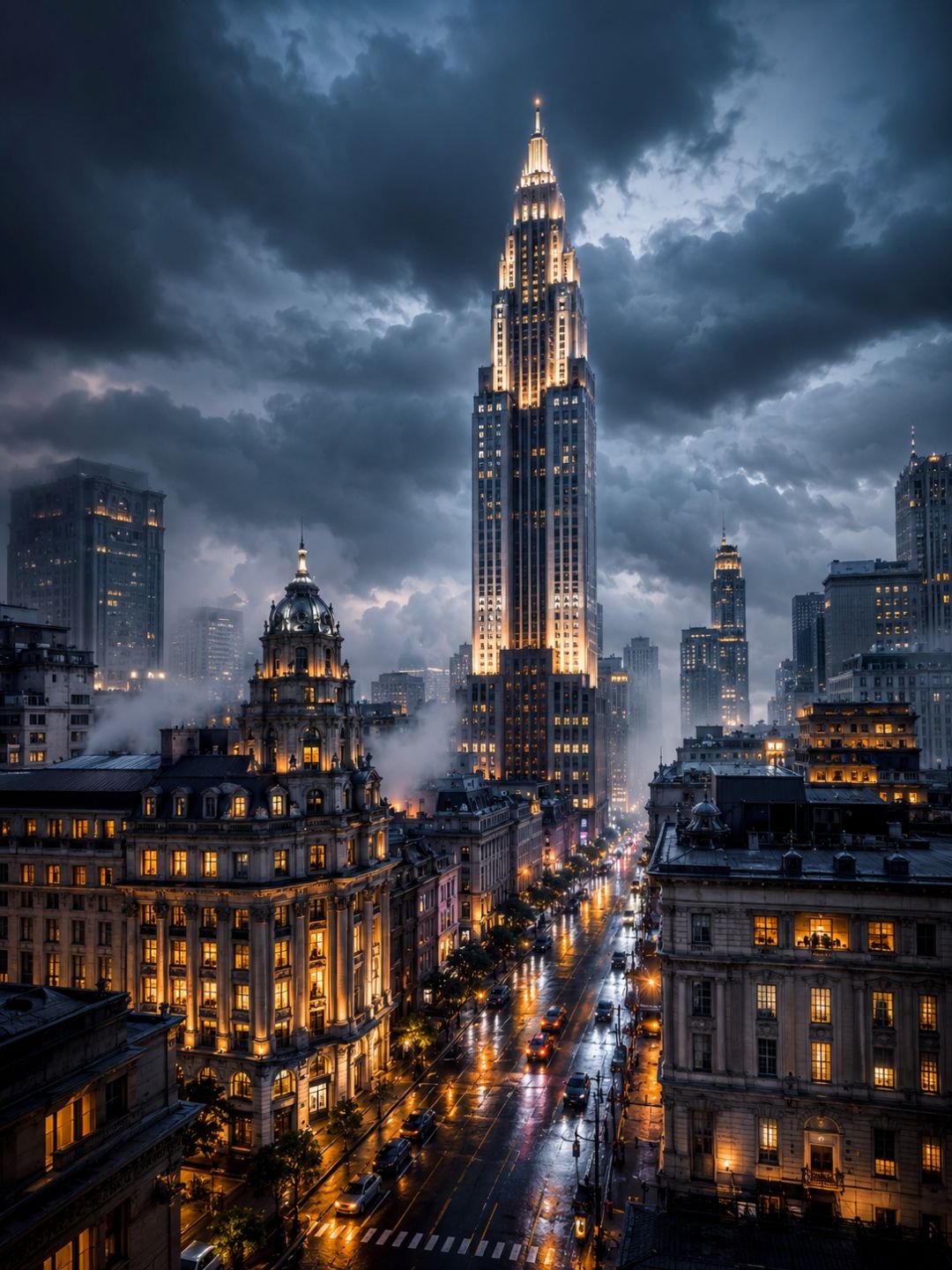
This 4K city wallpaper prompt generates a sharp, richly coloured skyline you can set as a desktop or phone background. The trick with wallpapers is detail and depth without clutter, so the image still looks clean behind your icons. Paste it into Gemini or ChatGPT, pick your aspect ratio, and you get a crisp, ready-to-use wallpaper.
The prompt
A stunning 4K wallpaper of a modern city skyline at night, glowing skyscrapers reflected in calm water, deep blue and purple sky, sharp fine detail, rich vibrant colours, atmospheric depth, wide cinematic composition, ultra high resolution, photorealistic.
What this prompt does
A wallpaper has to look great full-screen and stay clean behind icons. Each phrase serves that.
- Glowing skyscrapers reflected in water doubles the visual interest and adds symmetry, which fills the frame without making it busy.
- Deep blue and purple sky gives a calm, cohesive colour palette. A limited palette keeps the wallpaper from clashing with your icons and widgets.
- Sharp fine detail, ultra high resolution is essential for wallpapers, since any softness becomes obvious when the image is stretched across a large screen.
- Wide cinematic composition leaves calm negative space in the sky and water where your icons can sit comfortably.
Best settings
| Aspect ratio | 16:9 for desktop, 9:16 for phone — set this before generating |
| Gemini | Works as-is. Ask for the exact ratio you need in your message. |
| ChatGPT | Add “no text, no watermark” to keep the wallpaper clean. |
| Midjourney | Add –ar 16:9 (desktop) or –ar 9:16 (phone). |
3 variations
Anime / Ghibli style
Replace “photorealistic” with “Studio Ghibli anime style, soft painted clouds, warm sunset”. This turns the skyline into a dreamy illustrated wallpaper, which is hugely popular for phones.
Nature version
Swap the city entirely: “a misty mountain range at sunrise, layered peaks, soft fog in the valleys”. Keep the wide composition and rich colour. Calmer and less busy behind icons.
Minimal abstract version
Change to “a smooth abstract gradient of deep blue and purple with soft flowing shapes”. The cleanest option for a work laptop — plenty of quiet space for icons and widgets.
Common mistakes
- Wrong aspect ratio. Generating square then stretching it ruins the image. Always set 16:9 or 9:16 before you generate.
- Too much detail everywhere. A frame packed corner to corner leaves nowhere for icons. Keep some calm negative space.
- Clashing colours. A rainbow of colours fights with your interface. Stick to a two- or three-colour palette.
- Leaving text in. Random AI text or watermarks look cheap on a wallpaper. Add “no text, no watermark”.
Frequently asked questions
Does this 4K wallpaper prompt work in Gemini?
Yes. Paste it into Gemini and state your aspect ratio — 16:9 for desktop or 9:16 for phone — so the wallpaper fits your screen without cropping.
Is the result really 4K resolution?
Most generators output around 1024 to 2048 pixels, not true 4K. For a large screen, upscale the result with a free AI upscaler to reach a sharp 4K size.
How do I make it fit my phone screen?
Ask for a 9:16 vertical ratio when generating. Making a landscape image and cropping it down loses the top and bottom of the scene.
Can I use these wallpapers freely?
For personal use as your own background, yes. If you plan to sell or redistribute them, check the terms of the AI model you used, since commercial rules vary.
More prompts like this
Love the neon-city look? The cyberpunk neon portrait prompt brings the same glow to portraits. For video backgrounds, see the cinematic rain video prompt. Explore more in our prompt guides.
Browse all image prompts.